
How to use Bodymap
Short answers to "how do I…?". Bodymap has five tabs along the bottom — Today, Body, Food, History and You — and every answer here starts from one of them. Settings is the button at the top of You.
Getting started — Create an account · Set up the app · Moving to a new phone · Reset your password
Logging — Log a workout · Log cardio or a sport · Warm-ups, drop sets and other set types · Supersets · Add an exercise that isn't listed · Log a past day or fix a mistake · Repeat a previous session
Plans — Follow a plan · Change day, switch plan or stop
Your body and progress — Read the body map · See your progress and ranks · Log your bodyweight · Set a calorie burn target
Food — Turn on food tracking · Log what you eat · When a food isn't there · Something wrong with a food? · Set a daily calorie target · See what you ate against what you burned
Sharing — Share a workout to your Instagram story
Other apps — Bring in runs and rides from Strava, Garmin and more
Settings and your data — Kilograms or pounds, kilometres or miles · Export your data · Replay the tour
Pro and your account — What Pro adds · Subscribe, change plan, restore or cancel · Sign out · Delete your account
Getting started
Create an account
You need an account to use Bodymap. It keeps a copy of your training log, so a new phone picks up where the old one left off.
- On the first screen, tap Continue with Google — or tap Create an account at the bottom, enter your name, email and a password of at least six characters, and tap Create account.
- If you used email, open the confirmation email on the same phone and tap the link. It brings you back to Bodymap, signed in.
Already have an account? Sign in on the same screen with Google, or with your email and password.
If you used Bodymap before accounts were needed, the training already on your phone stays there and becomes part of the account you sign in with.
Set up the app
After you sign in for the first time, Bodymap asks a few questions: what you're training for, how long you've been training, whether you want a plan, how many days a week you can train, which split you follow, and what you weigh. The last one — sex and year of birth — is optional; tap Skip both if you'd rather not say. You can change your answers later in You → Settings.
Then tap Start logging. If you chose a plan, its first workout is already on Today, ready to log.
Moving to a new phone
Sign in on the new phone with the same account and your log comes with you.
On the free plan your account's copy is refreshed once a day, so if you can, sign out on the old phone first — that saves everything up to that moment. With Pro, every change is synced as you make it, and if both the phone and your account already have training on them, Bodymap asks which log to keep rather than throwing either away.
Reset your password
- On the sign-in screen, tap Forgot your password?
- Enter your email and tap Send reset link.
- Open the email on your phone and tap the link. Bodymap opens and asks you for a new password.
Logging
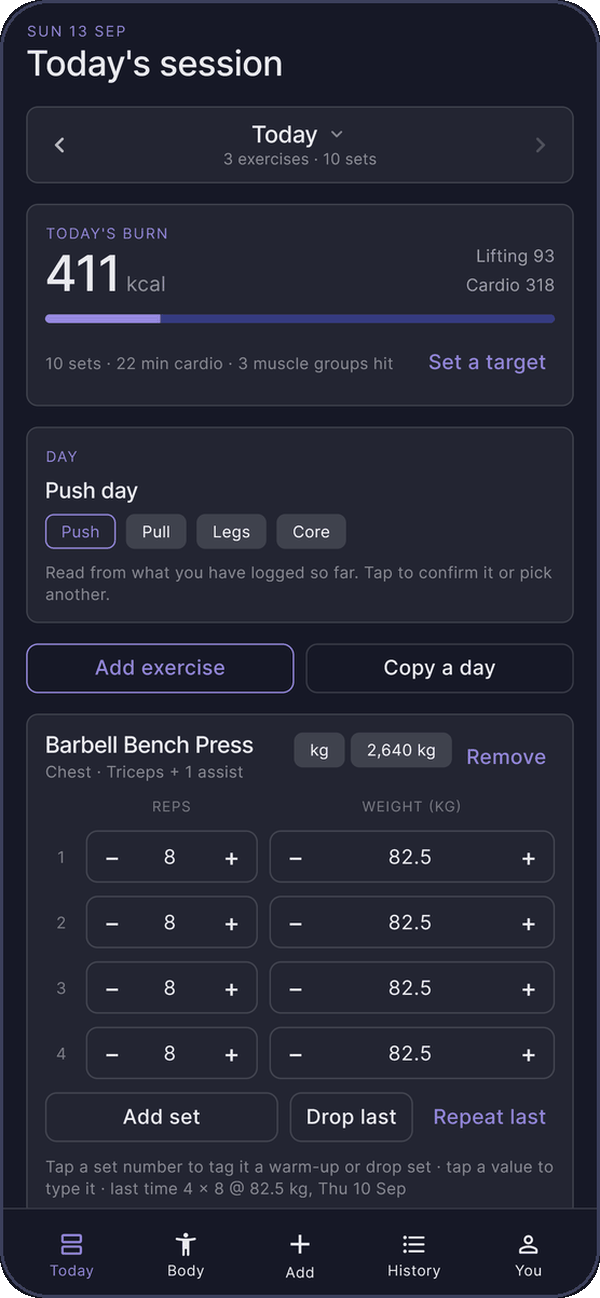
Log a workout
- On Today, tap Add exercise.
- Find the lift. Search, or filter by day or body part; the ones you log most sit at the top. Tap it to add it to the day.
- On the lift's card, set the reps and weight for each set with − and +, or tap a number to type it.
- Tap Add set for another set, or Drop last to take one off.
Sets and reps start from the last time you did that lift; the weight starts at zero for you to fill in. View last shows what you did last time, set by set, and Repeat copies it onto the card, weights included. Everything saves as you go.
On a lift's card you can also tap ▷ to see how the lift is done, tap × to remove it, and hold its name to drag it into a different order.
Log cardio or a sport
- On Today, tap Add exercise, then the Cardio & sport filter.
- Tap the activity to add it.
- On its card, set how long it took — and, where the activity has them, speed, distance, steps, incline or level.
Calories are worked out from your bodyweight and how hard the activity was. If you record runs or rides in another app, Bodymap can bring them in by itself.
Warm-ups, drop sets and other set types
Every set is a normal working set until you say otherwise. Tap a set's number on the lift card and choose warm-up, drop set, AMRAP or myo-rep; the number turns into a letter so the session reads at a glance. The ? at the top of that menu explains each one, and which of them change your numbers.
Supersets
Between two lift cards on Today there's a faint link. Tap it to join the two as a superset — one straight after the other with no rest. Tap it again to unlink. Chains work too: A into B into C.
Add an exercise that isn't listed
- In the exercise list (Today → Add exercise), scroll to the bottom and tap Create an exercise. If you've just searched for it, the button says Create "…" instead.
- Give it a name, pick its block (push, pull, legs or core) and equipment, and choose the muscles it works.
- Tap Save exercise.
It goes straight onto the day and counts on the body map like any other lift. Bodymap looks for a demonstration picture for it by name. Exercises you create are private to you — nobody else ever sees them.
Log a past day or fix a mistake
- Log a past day: on Today, use the arrows beside the date, or tap the date to pick one. Anything you add now lands on that day. Tap Back to today when you're done.
- Fix a past session: go to History → Sessions, tap View sets on the session, then Edit these sets. Changes save as you make them; tap Done editing to finish.
Repeat a previous session
- On Today, tap Copy a day and pick the session. Sets, reps and weights come across exactly as you logged them — edit anything after.
- Or in History, tap Copy to today on any session.
Plans
Follow a plan
Every plan is free.
- Go to You → Settings and, under Plan, tap Start from a plan. On an empty Today there's a Start from a plan button too.
- The plans at the top are recommended from your answers in setup. Tap Preview to see every day, with its sets and reps.
- Tap Follow and the plan's name.
Today then shows Your plan and which day is next. Tap Start and the day's name to put all its lifts on today, then log as usual. If a plan uses a different split from yours, its preview says so before you follow it.
Change day, switch plan or stop
- Doing a different day: on the plan card on Today, tap Change day and pick the one you're doing. I already trained… marks the next day done without putting anything on your log.
- Stop: tap Change day, then Stop following the plan. Everything you logged stays exactly as it is.
- Switch: go to You → Settings → Plan → Change plan.
Your body and progress
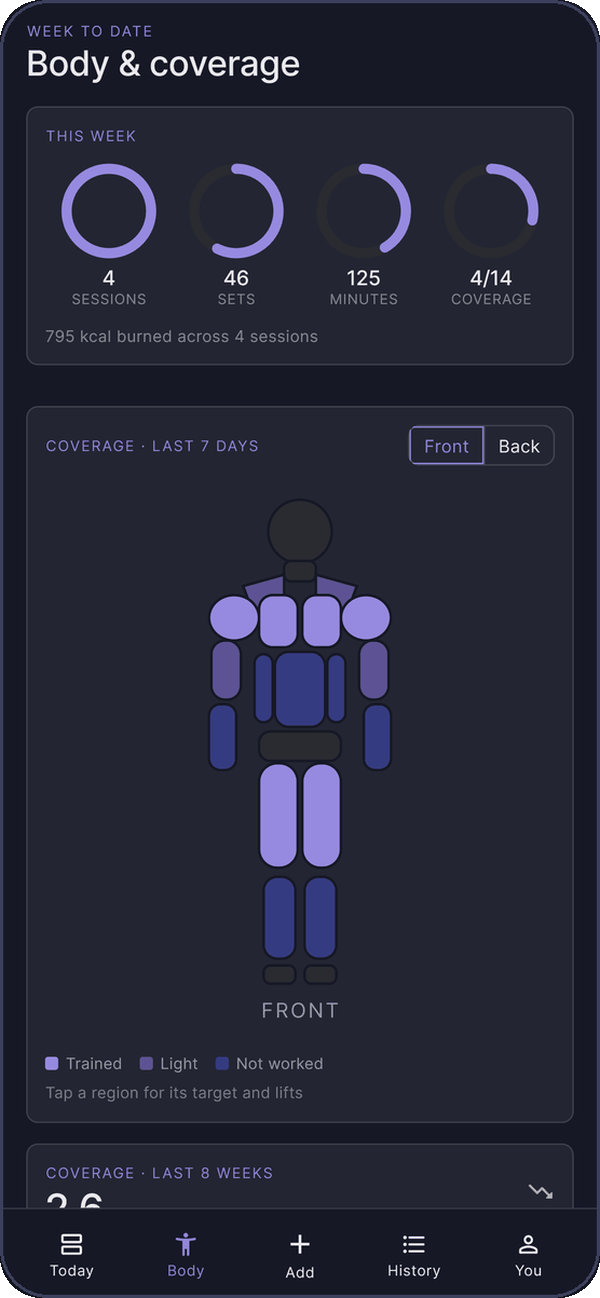
Read the body map
Open Body. Every set you log lights up the muscles it trained in the last seven days; anything still dim hasn't been trained. Switch between Front and Back at the top.
Tap a muscle to see three lifts that would close the gap, and add one to today in a tap. The Coach card picks out your biggest gap — tap Fix it.
If you chose Female for sex during setup or in You → Settings → About you, the map draws a female figure — on Body, on the day's summary and on the cards you share. With Pro you can change her hair from a bun to a ponytail or long hair in You → Settings → Units & display.
See your progress and ranks
Open History. It has three views:
- Sessions — every workout, newest first, with what each one burned.
- Progress — your top set on a lift, session by session. Tap Change above the chart to pick another lift. The free plan charts one lift and lets you change it once every 30 days; Pro charts them all and switches whenever you like.
- Ranks — where each of your main lifts sits against published strength standards. Pro adds the estimated one-rep max and bodyweight multiple behind each rank, and the sets that would earn the next one.
The free plan shows your last 90 days in History. Older sessions are never deleted — they're in your export, and Pro shows them in the app.
Log your bodyweight
- Go to You. The Bodyweight card is at the top.
- Set your weight with − and +, or tap it to type.
- Tap Log today.
To add a weigh-in you missed, change the date above the weight first — the button changes to say which day. Every calorie figure uses your latest weigh-in, so a weekly one keeps them honest.
Set a calorie burn target
- On Today, tap the Today's burn card.
- Tap Set a target, and set a figure for each day, each week, or both.
It's a figure to reach, not a limit — it counts what your training puts out, and never limits what you eat. Change it or turn it off from the same place, or from You → Settings → Burn target.
Food
Turn on food tracking
- Tap Food in the middle of the tab bar.
- Read what it keeps, then tap Turn on food tracking.
It's off until you do this, and nothing about what you eat is stored before. To turn it off again — and, if you like, delete the food log — go to You → Settings → Food.
Log what you eat
- On Food, tap Add food under the meal: breakfast, lunch, dinner or snacks.
- Search by name, pick from Recent, or tap Scan and point the camera at the barcode.
- Choose how much — in grams, or a portion like "1 medium" — and tap Add.
Tap anything you've logged to change the amount, move it to another meal, or remove it. When a meal is empty and yesterday's wasn't, Same as yesterday copies it across. Like Today, Food works on any day: use the arrows beside the date.
When a food isn't there
- Add a new food puts it in the shared food database, so the next person finds it. Copy the figures off the label. The first time, you're asked to agree to the database's rules. Everyone who uses Bodymap can find what you add — your name isn't on it.
- Quick add logs the calories (and protein, carbs and fat if you like) in your own diary only, without adding anything to the database.
- If you scan a barcode nobody has added, Bodymap offers to add it with the barcode already filled in.
Something wrong with a food?
Open it and tap Report it. Reports come to us; we fix or remove what's wrong. Hide it keeps it out of your own searches — You → Settings → Food brings hidden foods back. Foods from Open Food Facts are fixed on Open Food Facts itself; the food has a link there.
Set a daily calorie target
- On Food, tap the day's total.
- Choose to lose weight, keep it steady or gain, and how fast. Bodymap shows its working and suggests a target, which you can change.
Targets are never suggested below what your body uses at rest, or below 1,200 kcal; losing is capped at 1% of your bodyweight a week; and weight-loss targets need a year of birth that says you're 18 or over. It's all an estimate — if your weight isn't moving the way you planned after three or four weeks, change it.
See what you ate against what you burned
Once food tracking is on, Today shows an Energy balance card: what you ate, minus what you burned — your resting metabolism, an ordinary day's activity, and your training. Tell Bodymap how active your day is, apart from training, when you set a target.
Sharing
Share a workout to your Instagram story
Bodymap turns a day's training into a small block — the numbers, the bar, your ranks — made to sit on top of your own photo or video.
- On Today, tap the Today's burn card, then Share. To share an earlier day, go to that day first with the arrows beside the date.
- Swipe through the designs — Chip, Totem, Stub, Caption, Dial and Glass, plus Badge and Rail when the day includes a ranked lift. On Badge, tap the lift you want it to show.
- Choose Plate, a frosted backing that stays readable over a busy photo, or Bare, the block on its own.
- Tap Save. The block goes into your phone's photos. If your phone asks, let Bodymap save pictures.
- In Instagram, start a story with your own photo or video. Tap the sticker button, pick the block from your gallery, then drag and pinch to place it.
Why save, and not share straight to the story? You can — tap Share instead of Save. But a story needs a background, and a block isn't one: shared on its own, a Bare block lands on black. Adding it as a sticker is how your photo ends up behind it.
Share is greyed out on a day with nothing logged.
Other apps
Bring in runs and rides from Strava, Garmin and more
Workouts you record in Strava, Garmin Connect, Runkeeper, MapMyRun — or any app that saves workouts to Google's Health Connect — can appear on Today by themselves.
- Go to You → Settings → Connected apps and tap Connect. On Android 13 or older you may need to tap Get Health Connect first.
- Choose how far back to bring workouts in, and tap Continue.
- Android asks for permission. Allow exercise, distance and steps.
- Switch on Health Connect in the app you record with. Tap that app under Record in for its steps — in Strava it's You → Settings → Applications, Services, and Devices → Health Connect → Connect.
New workouts arrive the next time you open Bodymap, each with an Undo. Remove an imported workout from its day and it won't be brought in again. Disconnect, in the same place, stops importing and keeps what's already in your log.
Bodymap only reads the workout's type, time, distance and steps. It never sees routes, maps or heart rate, and never writes anything back. Strength sessions from other apps are skipped — log those as lifts. Health Connect needs Android 9 or newer.
Settings and your data
Kilograms or pounds, kilometres or miles
Go to You → Settings → Units & display. Choose kilograms or pounds for weights, and kilometres or miles for cardio — they're set separately.
To read one lift on one day in the other unit — a machine stacked in pounds, say — tap the kg or lb tag on its card. To always use a different unit for a particular lift, set it further down Units & display.
Export your data
Go to You → Settings and tap Export my data. You get one .zip with a spreadsheet of every set you've logged, one of your food diary if you keep one, and a full backup file. It always covers your whole history, free or Pro. Save it or send it anywhere from the share menu.
Replay the tour
Go to You → Settings → Show me again and tap Replay the walkthrough. Replay the logging tips shows set types and supersets again; it needs two or more lifts on the day.
Pro and your account
What Pro adds
Everything you log is free, and stays yours. Pro adds the reading of it:
- Live sync — every change synced as you make it, on every phone you use. Free accounts are backed up once a day.
- Your whole history — every session you have ever logged, not just the last 90 days.
- Coverage over weeks — what you keep skipping, not just what you skipped this week.
- Every lift charted — all at once, sorted by what's climbing and what's stalled.
- Ranks in full — the estimated one-rep max and bodyweight multiple behind each rank, and the sets that earn the next one.
- Next-session planner — the session that closes your gaps, built and ready to add.
- Your colours — six accent colours for the whole app, and every hairstyle for the female body map.
Plans, the body map — male or female — sharing, connected apps and export are all free.
Subscribe, change plan, restore or cancel
- Subscribe: go to You, tap Upgrade to Pro, choose a plan and tap Start with Pro. Billing is through Google Play.
- Change plan: go to You, tap Manage Subscription → Change Plans and tap Switch to Yearly or Switch to Monthly. Moving to yearly charges the yearly price straight away and adds on what's left of your month. Moving to monthly costs nothing until your year runs out.
- Restore after reinstalling or on a new phone: Restore purchases on the same screen.
- Cancel: go to You and tap Manage Subscription → Cancel Subscription, which walks you through it, or in the Play Store go to your profile → Payments and subscriptions → Subscriptions → Bodymap. You keep Pro until the end of the period you've paid for. Nothing you've logged is deleted; your log goes back to being backed up once a day.
Sign out
Go to You and, on the Account card, tap Sign out. Your log is saved to your account first, then removed from this phone so the next person starts from their own. Sign back in and it comes back. If the phone is offline, Bodymap tells you before anything is lost.
Delete your account
Go to You and, on the Account card, tap Delete account, then Delete for ever. It's immediate and can't be undone, so export your data first if you want to keep it.
Deleting your account doesn't cancel a Pro subscription — cancel it in the Play Store first. If you can't reach the app, see Delete your account.
Still stuck?
Email thomasharris0147@gmail.com and say what you were trying to do. Privacy questions are answered in the privacy policy.